


Key Takeaways:
- Case break inventory lets you receive product by the case and sell it by the bottle, six-pack, or any other unit, with your POS tracking all of it automatically.
- Without case break functionality, your inventory counts and your physical stock will drift apart every time a customer buys a single bottle from a case.
- A POS system handles case break through linked product codes: one barcode for the case, one for the single, and a unit conversion that keeps both counts in sync.
- In KORONA POS, you set this up through Product Codes on the product page, where you assign a quantity denomination to each barcode so the system knows how many units a scan represents.
What Is Case Break Inventory?
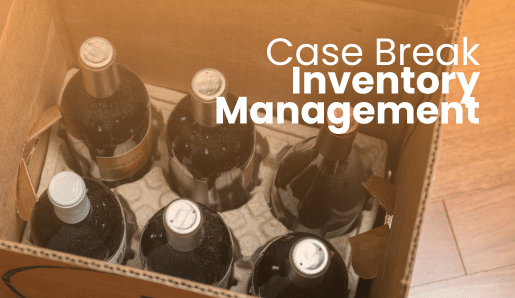
Case break inventory is the practice of receiving a product in bulk packaging and selling it in smaller units while tracking both in a single connected inventory record.
For a liquor store, this is the default reality. You buy bourbon by the case of 12 bottles, craft beer by the case of 24 cans, and wine by the mixed pallet. But customers buy one bottle at a time. Your POS system needs to bridge that gap without requiring manual inventory reconciliation every time a bottle leaves the shelf.
Why Generic POS Systems Struggle With Case Break
Most general-purpose retail POS systems treat inventory as a flat count with one product, one SKU, or one number. That works fine for a clothing boutique; a liquor store is a different story.
When a customer buys a bottle of Tito’s, a generic system subtracts one unit. Usually, your system has no way to tell whether that bottle came from a full case, a partial case, or a single display bottle. Your on-hand quantity for the case stays incorrect until someone manually reconciles it. Multiply that by hundreds of transactions a day across thousands of SKUs, and your inventory data becomes functionally useless.
The Real Cost of Phantom Inventory
Phantom inventory is stock your system shows you having, but that isn’t actually there, and it’s one of the leading causes of stockouts in retail. You think you have 18 bottles of a top-selling whiskey. You actually have 6. If you don’t reorder, you run out on a Saturday night.
The opposite problem is just as expensive. Over-ordering ties up cash in excess stock and takes shelf space away from faster-selling items. Both problems come from the same place: a system that can’t account for how alcohol is actually bought and sold.
How Case Break Works in a POS System
A well-built case break setup links multiple unit sizes to a single product record. The case, the six-pack, and the single bottle are all the same item. They just have different barcodes and different quantity multipliers.
When a cashier scans the single bottle barcode, the system subtracts one unit. When they scan the case barcode, it subtracts twelve. Either way, the inventory record for that product updates in real time, no matter which barcode was used.
The Key Components
| Component | What It Does |
|---|---|
| Product Codes | Connects a barcode to a specific quantity. For example, a case barcode that equals 12 units. |
| Unit Conversion | Automatically translates any sale into the base unit count, no matter which barcode was scanned. |
| Linked Inventory | All unit sizes pull from the same on-hand total, with no duplicate records to manage. |
| Reorder Points | Set at the base unit level so low-stock alerts fire accurately regardless of how the product was sold. |
How KORONA POS Handles Case Break
In KORONA POS, case break inventory is managed through the Product Codes feature on the product setup page. Here’s how it works in practice.
Step 1: Create the base product. Navigate to Inventory > Products in KORONA Studio and set up the product as you normally would. Your base unit (usually the single bottle) is the product’s default unit of measure. Set the price, tax sector, commodity group, and supplier here.
Step 2: Add product codes for each unit size. Scroll to the Product Codes section on the product page. Add a new product code and assign the case barcode. In the quantity field, enter the number of base units that barcode represents: 12 for a standard case of wine, 24 for a case of canned beer, and so on. You can add as many product codes as you need, including single bottle, six-pack, and case.
Step 3: Set reorder minimums at the base unit level. In KORONA Studio under Inventory > Products > Stocks, set your minimum and maximum stock levels in the base unit. When the system counts 11 bottles remaining and your reorder point is 12, it will flag the product for replenishment, regardless of whether those 11 bottles were sold individually or pulled from a partial case
PRO TIP!
Use KORONA’s Commodity Group hierarchy to organize your liquor, beer, and wine product records under parent categories. When you run an ABC Analysis from the Evaluations tab, you can filter by Commodity Group to see which product segments are your top performers and which individual SKUs are candidates for reordering or removing from your catalog.
Setting Up Case Break for Beer, Wine, and Spirits
The basic product code setup is the same across all three categories, but the unit sizes you need to account for are different. Here is what to plan for before you start building your product records.
Beer
Beer has the most unit-size variety of any category in a liquor store. A single SKU might be sold as a single can, a four-pack, a six-pack, a twelve-pack, and a case of 24. You will want a product code for each size you actually sell at the register.
Set your base unit as the single can or bottle. Then assign product codes for each pack size with the correct quantity multiplier. If you sell loose singles from a broken six-pack, make sure that single-can barcode is in your system so cashiers are not manually entering quantities at the register.
Wine
Wine is simpler. Most stores sell by the bottle and by the case of 12. Your base unit is the bottle, and you add one product code for the case barcode with a quantity of 12.
The main thing to watch for is mixed-variety cases, where a customer or distributor puts together a case from different labels. These are better handled as a bundle using Sub-Products rather than product codes, since each bottle is a distinct SKU with its own inventory record.
Spirits
Spirits introduce a size distinction that trips up a lot of stores: the handle (1.75L) and the fifth (750mL) are often the same brand and flavor but different products entirely, each with their own barcode, price, and case configuration. A case of fifths typically holds 12 bottles. A case of handles usually holds 6.
PRO TIP!
Set these up as two separate products in KORONA Studio, each with their own product codes. Do not try to link them through unit conversion, since they are not the same unit of the same item. Keeping them separate also makes your ABC Analysis and reorder reporting cleaner, since handles and fifths often have different velocity and margin profiles.
Case Break and Receiving
Case break affects how you receive product. When a distributor drops off 10 cases of a vodka brand, you need to record that as 120 bottles in your inventory, not 10 units.
In KORONA POS, you do this through Stock Receipts (Inventory > Stock Receipts). When creating a receipt, enter the quantity in the unit you received. Your product code setup takes care of the rest and records the correct bottle count. This keeps receiving straightforward and your on-hand totals accurate from the moment product comes through the door.
PRO TIP!
If your store receives a mix of full and partial cases from a distributor, use KORONA’s stock adjustment feature to record any difference between what was ordered and what actually arrived. Navigate to Inventory > Stock Adjustments, enter a positive or negative count, and add a short note for your records. This creates an audit trail and keeps your counts accurate without overwriting historical order data.
Mix-and-Match Pricing and Case Breaks
Many liquor stores let customers mix their own six-pack or pick any six bottles of wine at a flat discount. This is where case break inventory connects to your pricing setup.
In KORONA POS, you can build mix-and-match promotions through the Discounts and Promotions section using product tags. Tag all the beer SKUs you want to include with a single tag, then set up a promotion that triggers when the customer’s cart has any six of those tagged products. The discount applies automatically, with no cashier override needed.
What to Watch For
- Make sure each individual bottle has its own product code and base unit count so the promotion logic can read the cart correctly.
- If a customer builds a six-pack from bottles that span different commodity groups, set your promotion tag at the SKU level rather than the group level.
- Test the discount at the POS before launch by running a practice transaction with six different tagged items.
When to Use Sub-Products Instead
For pre-built gift sets (a bottle of whiskey paired with two tasting glasses, for example), KORONA’s Sub-Products feature is a better fit than product codes. Sub-Products let you create a parent product for the gift set that pulls down inventory from each component when the bundle is sold.
This is different from case break, which is about selling different quantities of the same item. Use Sub-Products when the items in a bundle are separate SKUs that you also sell on their own. Use Product Codes when you are selling the same item in different quantities.
Signs Your Current System Isn’t Handling Case Break Properly
If any of these are happening in your store, your POS system likely does not support case break the right way:
- Your on-hand counts need manual correction after every receiving day
- Cashiers are changing prices or quantities at the register to handle case versus single pricing
- Your reorder alerts go off too early or too late because counts do not reflect actual bottle quantities
- You are maintaining two separate product records for the same SKU (one for the case, one for the bottle) with no connection between them
These problems are fixable, but only with a system built from the ground up to handle multi-unit inventory.
Inventory management a headache?
KORONA POS makes stock control easy. Automate tasks, generate custom reports, and learn how you can start improving your business.
Case Breaks: A Foundation for Everything Else
Case break inventory is the baseline requirement for keeping your counts accurate, your reorders timely, and your cashiers moving fast. Every other piece of inventory management, from ABC Analysis to mix-and-match pricing, depends on your unit tracking being correct in the first place.
If your current system is forcing you to reconcile counts by hand or maintain separate records for the same product, that is time and margin being lost from your store every day. Getting the setup right once means your data works for you from then on.
Case Break Inventory for Liquor Stores: FAQ
What’s the difference between case break and bundle inventory?
Case break means selling different quantities of the same product, like a single bottle versus a full case of wine. Bundle inventory means selling different products together as a package, like a whiskey gift set. Most liquor store POS systems handle these two things with different tools: product codes for case break, and sub-products or kitting for bundles.
Do I need a separate SKU for each unit size?
Not if your system supports product codes. In KORONA POS, you add multiple barcodes to one product record and assign each barcode a quantity. You avoid duplicate SKUs and can still scan and price each unit size correctly at the register.
How does case break affect reorder points?
Set your reorder point at the base unit level (individual bottles). That way, when the system checks whether you need to reorder, it is looking at a count that reflects all the ways product was sold: by the case, the six-pack, or the single bottle. Everything is measured against the same threshold.
Can I sell by the case and by the bottle at different prices?
Yes. In KORONA POS, you can assign a different price to each product code. Navigate to the Pricing by Product Code settings on the product page to set case pricing and single-bottle pricing on the same product record.
What happens to my case break inventory during a physical count?
Count in whatever unit is easiest for your staff, typically full cases plus loose bottles. When you enter the count in KORONA Studio (Inventory > Inventory Counts), convert to your base unit before saving. If you have 4 full cases of 12 and 7 loose bottles, enter 55. The system checks that number against your expected on-hand total and flags any gaps.